The following article describes the graphical user interface of the Leads Management module on the CloudBlue Connect platform. This article also introduces all available operations and functionality of this module.
The Directory section of the Leads module is used to access a list of all available leads within the account.
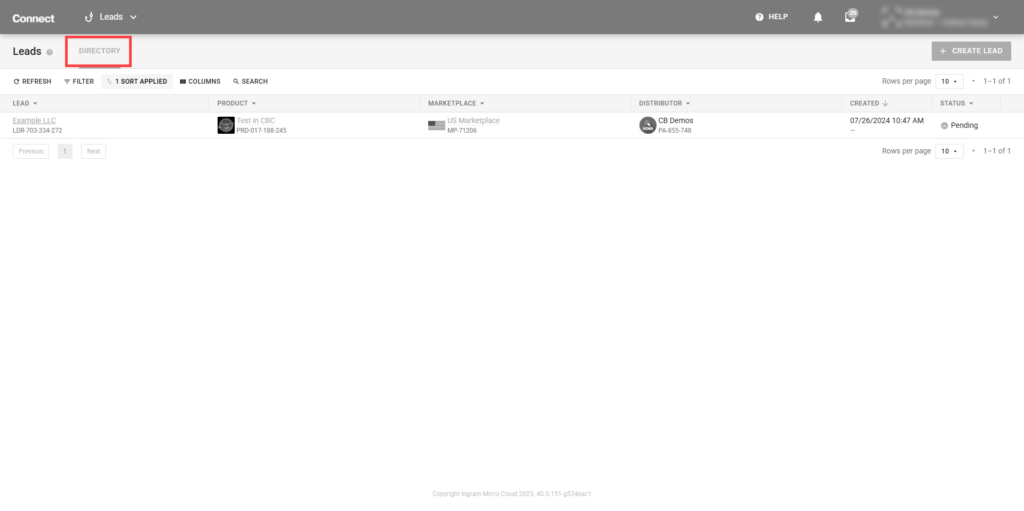
Create a new lead via a lead creation wizard from the Leads module.
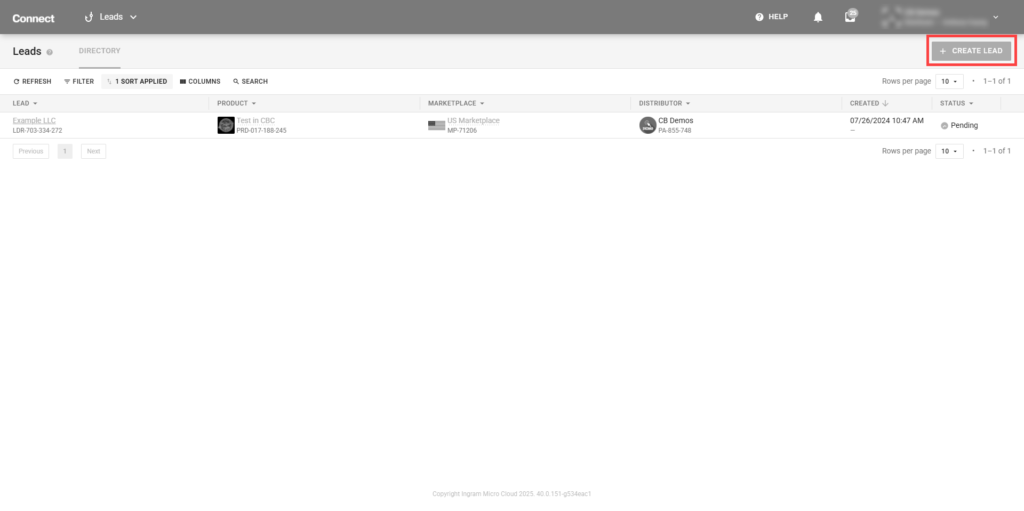
Click the Create Lead button to launch the wizard. Follow the steps below to successfully configure a new lead.
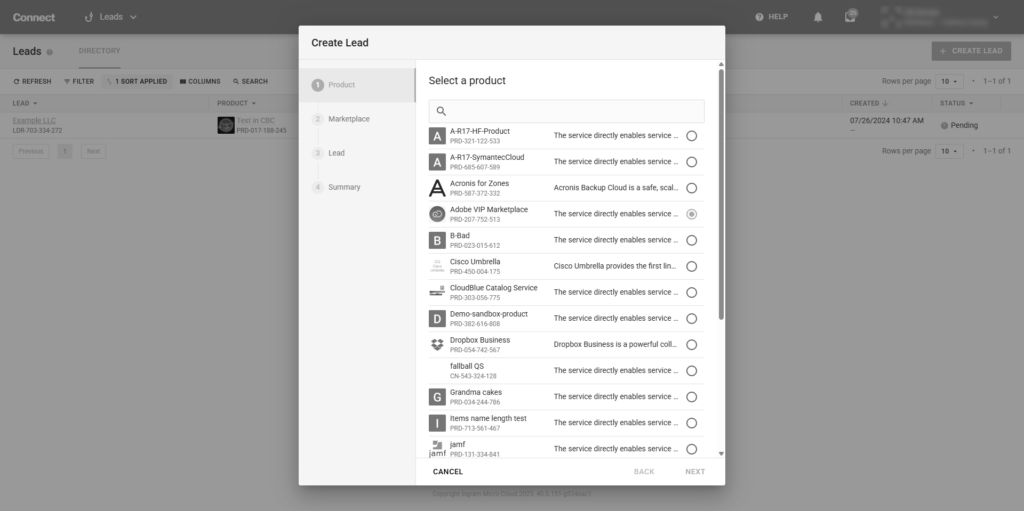
The first step is to select the product that is available within the account to create a lead generation for.
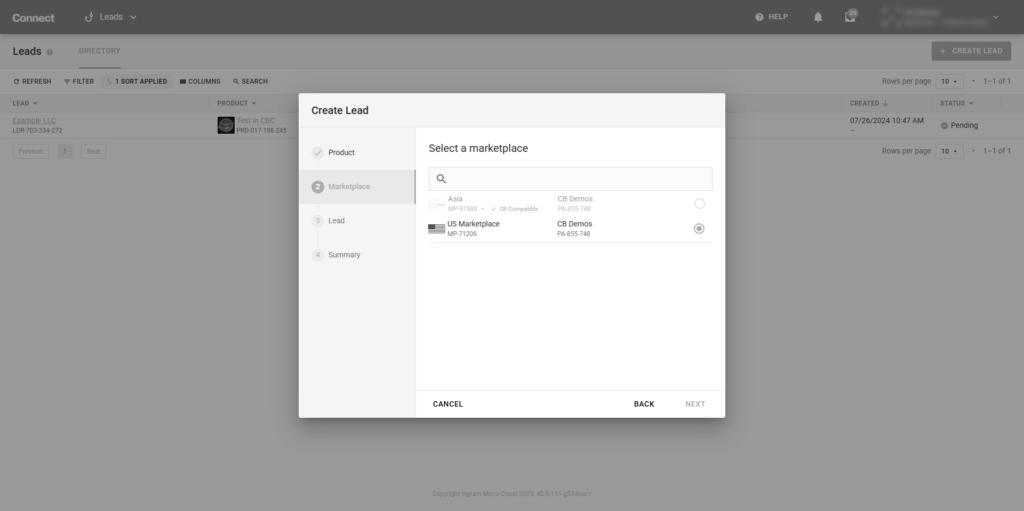
The second step is to select the available distributor marketplace that the customer for this lead is coming in from.
Lastly, fill out the lead information within the lead form in order to capture the detail about the customer or business that is interested in the product
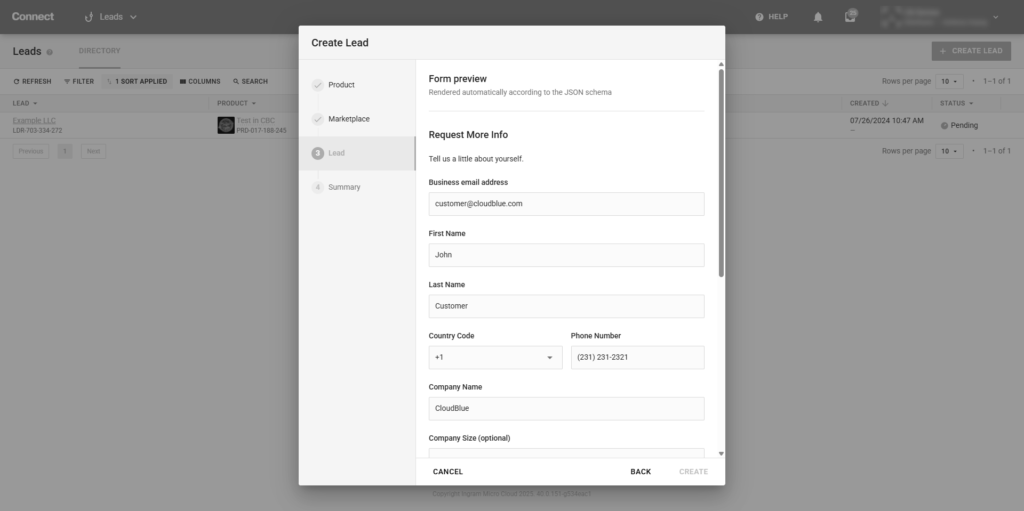
Once the lead is selected with a product, a marketplace, and a filled out form, it can be created. The Summary section provides an overview of the lead that was just created. This lead is now available in both the distributor portal and the vendor (product owner) portal.
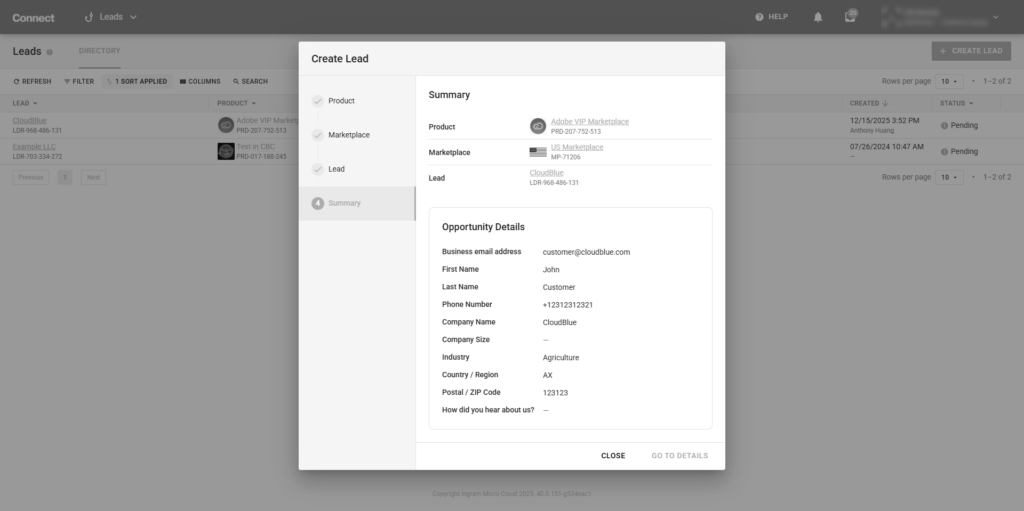
The summary list also provide clickable links that redirect to a corresponding object in a new window.
Click the Go to Details button to access your lead details screen. Otherwise, click Close to close the summary and the wizard.