The following provides instructions on how to create a distributor price list instance, generate a price list version, add a price list to a listing and perform other pricing operations by using the graphical user interface on the CloudBlue Connect® platform.
Create a new price list object by accessing the Pricing module and. Furthermore, the system also enables Vendors to generate a new price list via the product profile page. Note that by creating a price list, Vendors generate an initial price list version and specify its activation time and date.
Click the Add Price List button to launch a price list creation wizard.
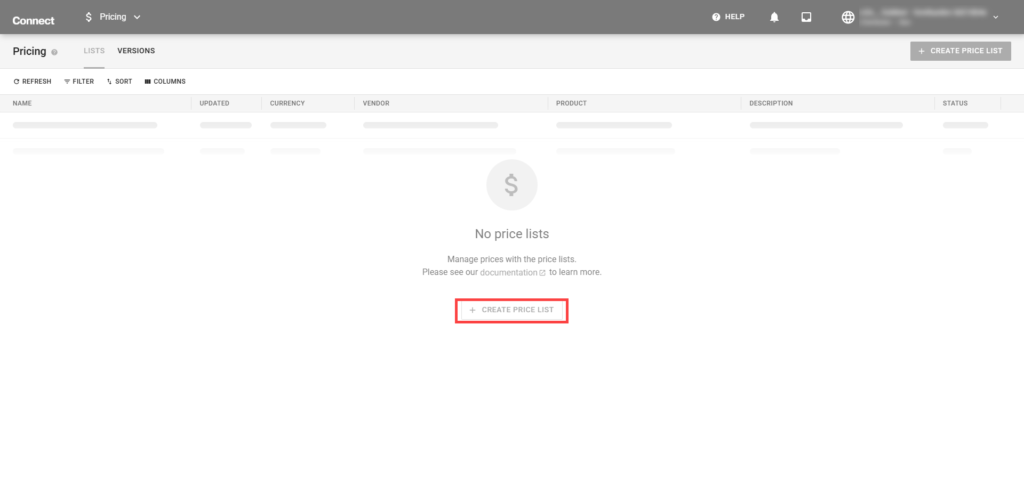
Follow the wizard steps to successfully configure your price list.
Select the model you wish to configure your new price list after:
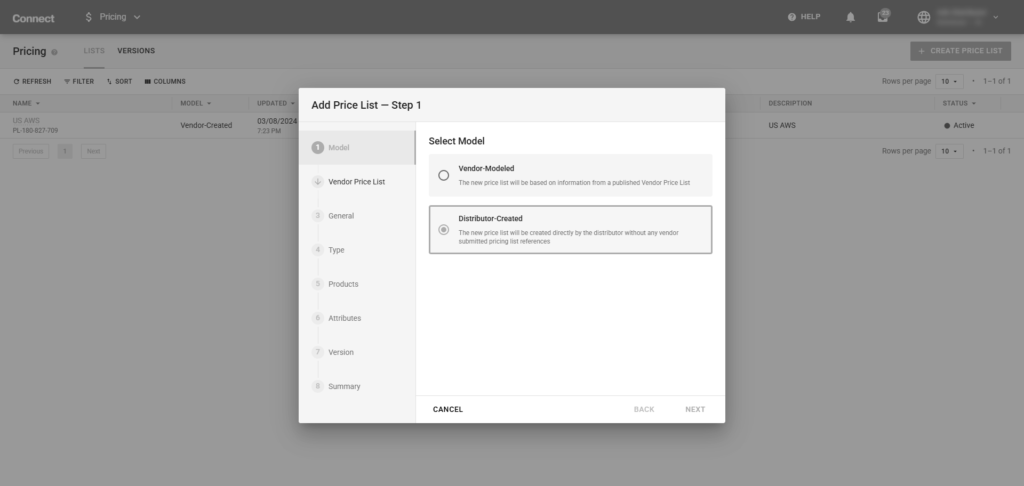
Click Next to continue.
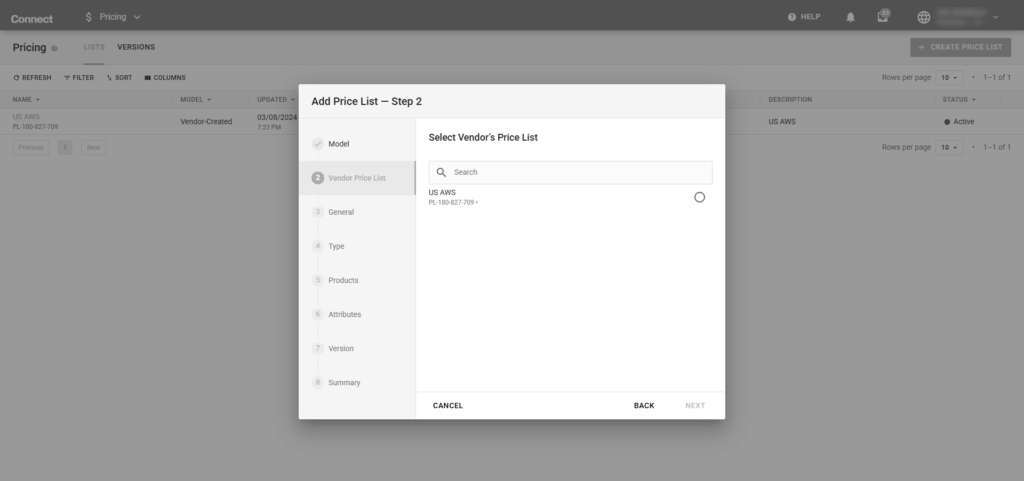
Select the existing Vendor Price List to have the new price list be modeled after.
Note: This step is only available if Vendor-Modeled is selected in Step 1
Please fill in the following information as it relates to the new Price List
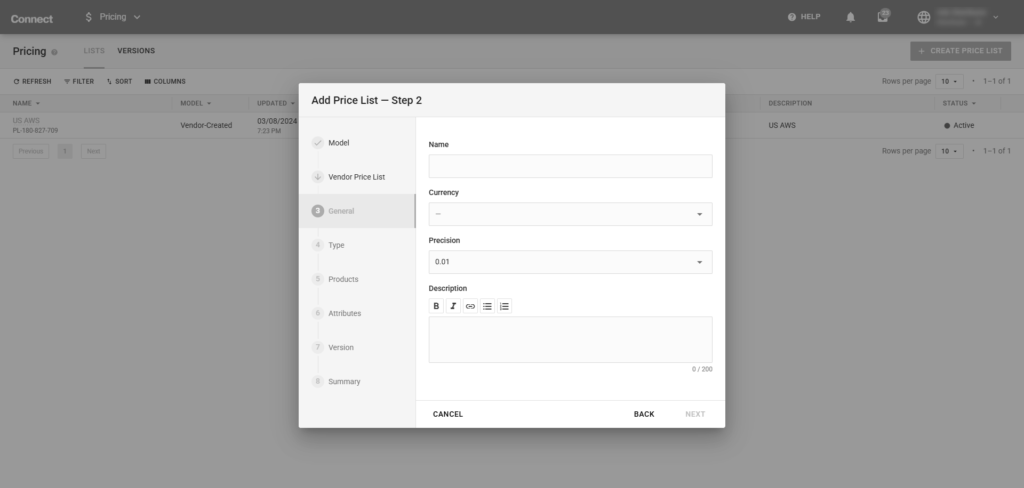
Click the Next button to continue.
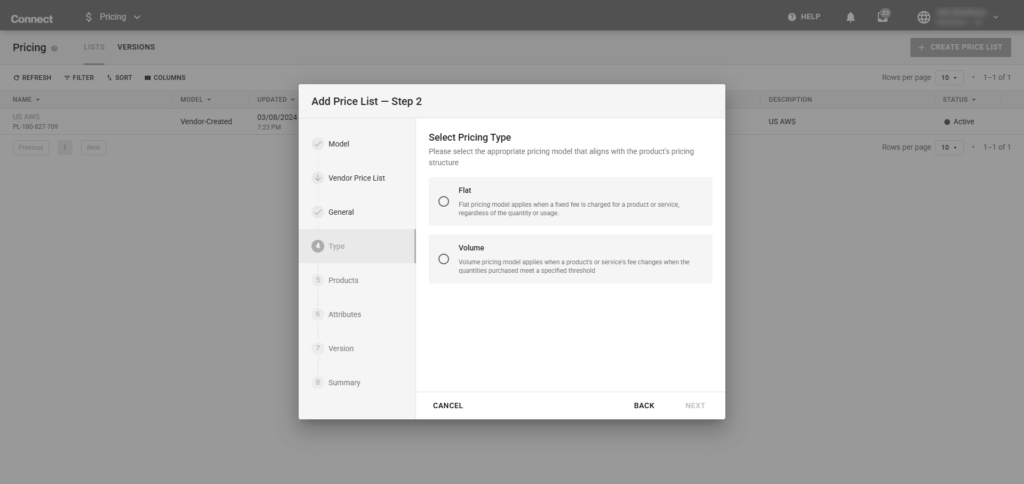
Select the appropriate price list type which the product’s pricing is structured on.
Note: This option is only available if Distributor-Created is selected in Step 1. Otherwise, the type is copied from the selected Vendor-Modeled price list
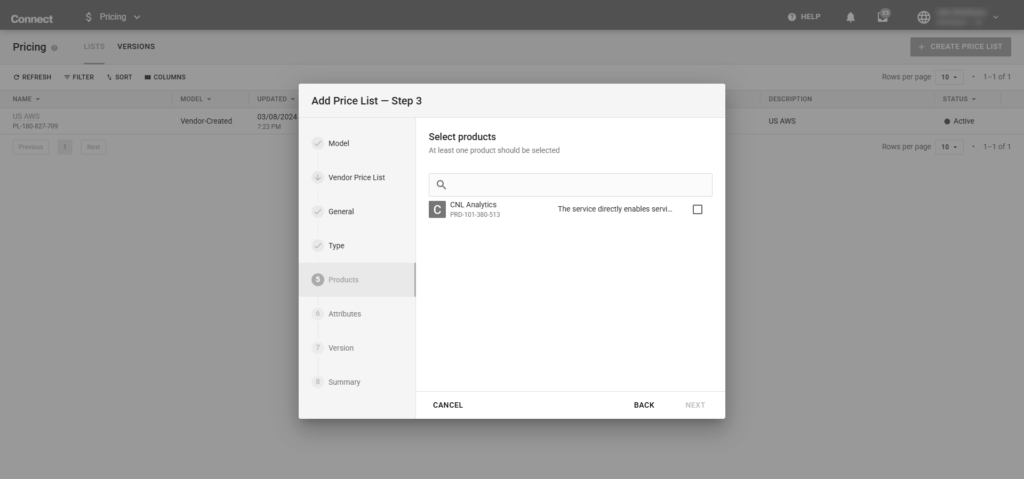
Select your product in the following form. Note that at least one product should be selected.
Note: This option is only available if Distributor-Created is selected in Step 1. Otherwise, the product(s) is copied from the selected Vendor-Modeled price list
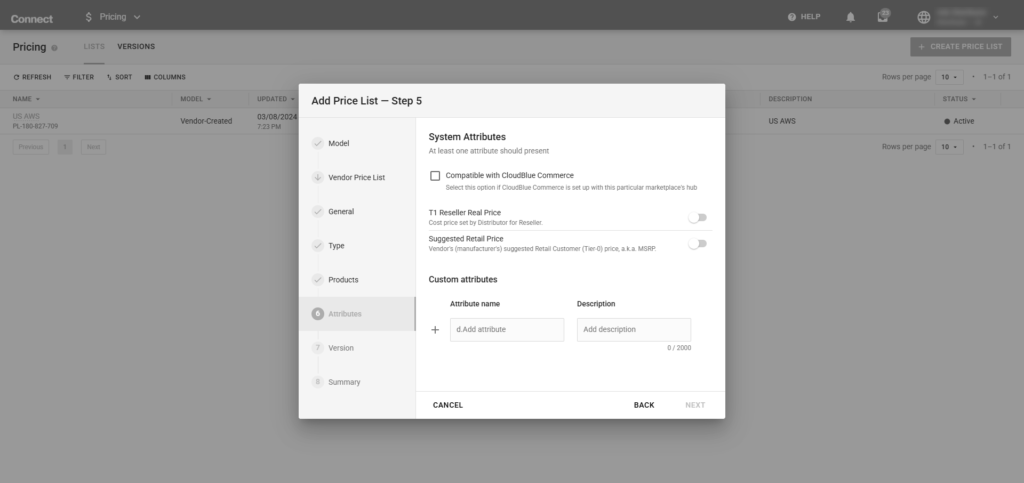
Configure the following system attributes.
Configure any optional custom attributes. These custom attributes are custom columns that may provide additional information for specific pricing information.
Click Next to continue.
Specify the following attributes for your initial price list version:
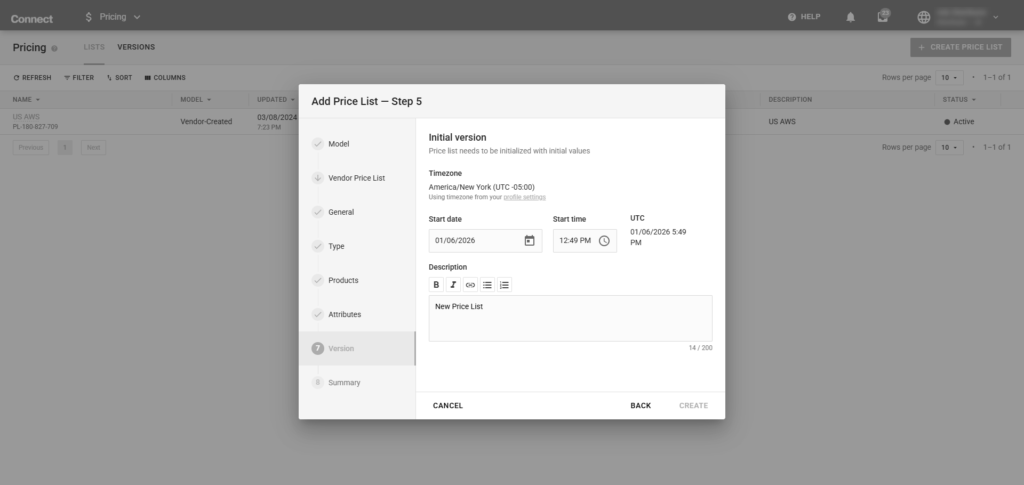
Click Create to finalize your price list and creation.
As a result, the system provides a summary for your generated price list and price list version objects
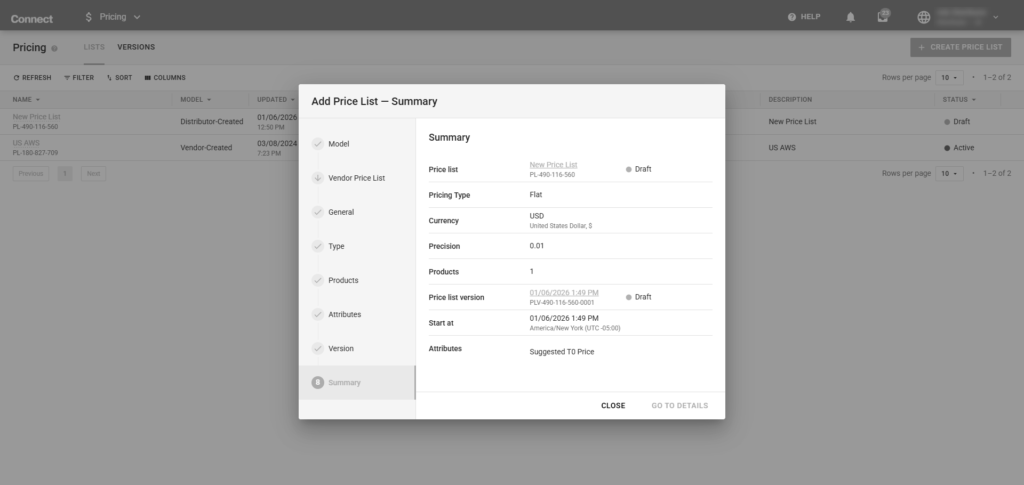
Click the Go to Details button to access the price list details screen. Otherwise, click Close to close the summary.
Once a price list version is generated, Distributors can access the price version details screen to activate your version. schedule activation, edit or delete your price list version, manage price values, and perform other operations.
Proceed to the Versions section of the Pricing module. Thereafter, click on the Start At value to access the price list version details.
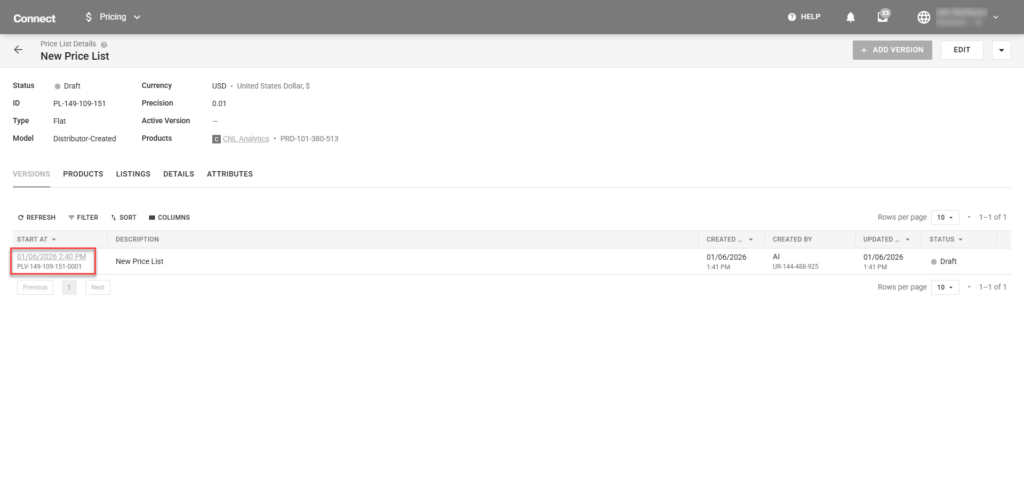
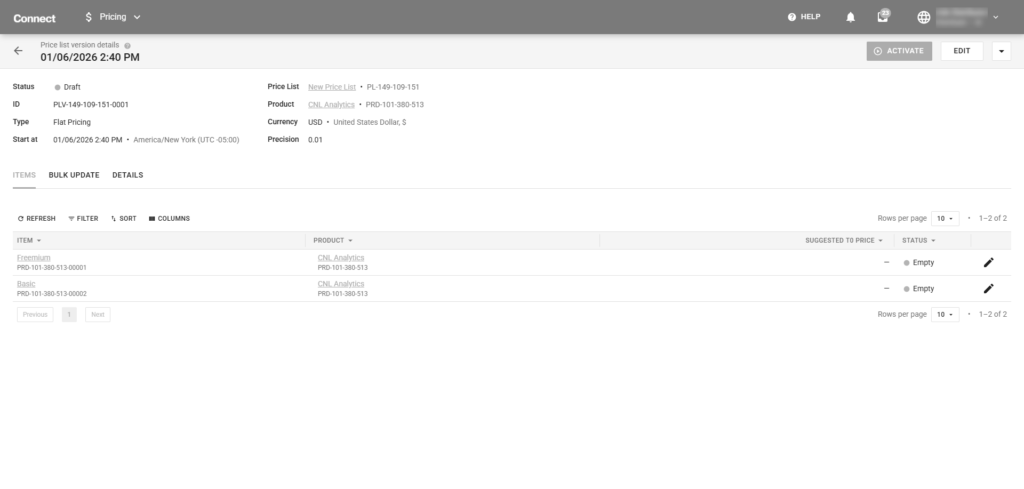
Distributors can also navigate to the price list details screen and access the version details from this screen.
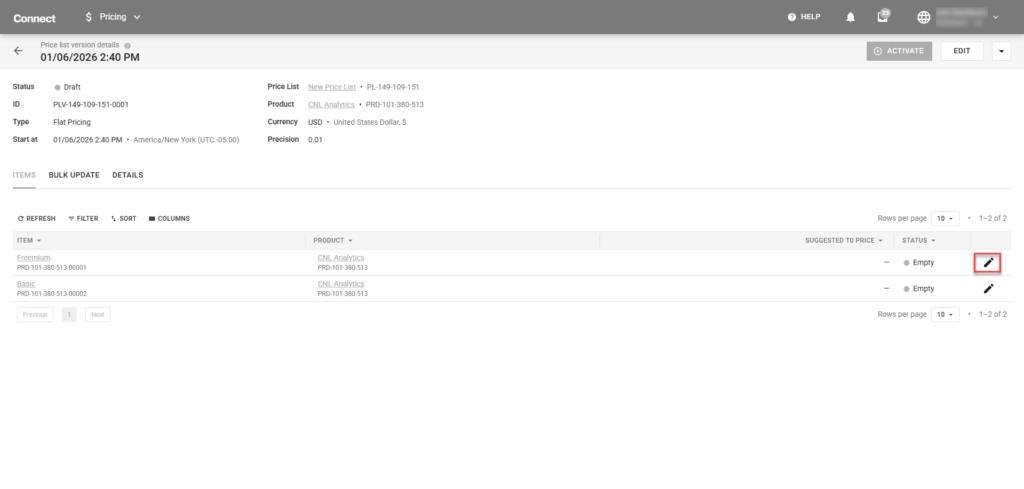
Distributors can assign values to an individual item by clicking the edit icon from the Items list.
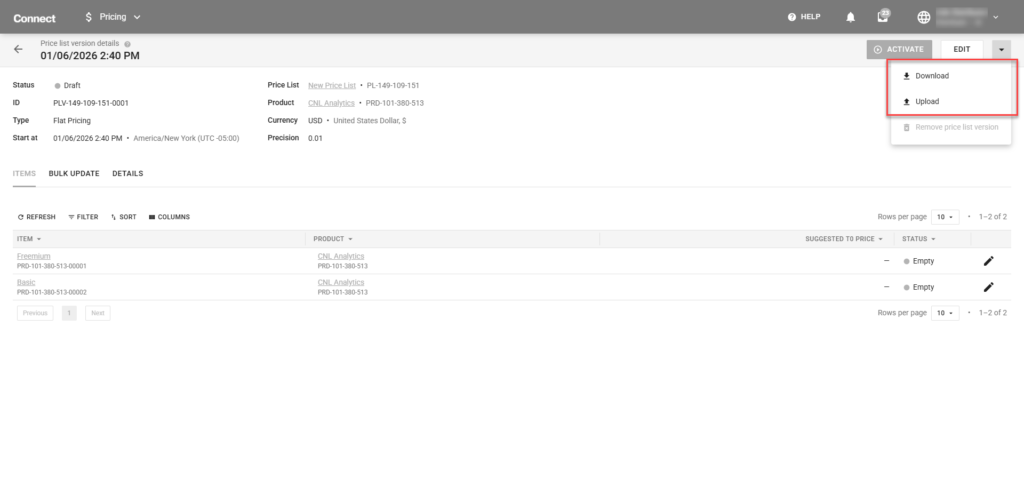
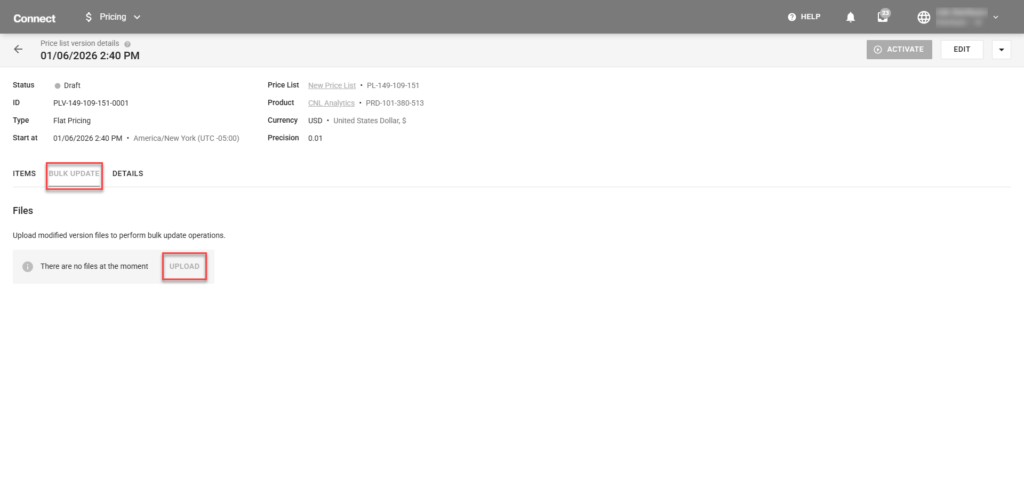
Distributors can export and import item price values by clicking on the vertical ellipsis (⋮) and selecting the Download or Upload options. In addition, Distributors can update provided values by using the bulk update functionality via the corresponding tab.
Once all required values are specified, the system enables Distributors to activate price list version as described below.
Distributors can assign values to an individual item by clicking the edit icon from the Items list.
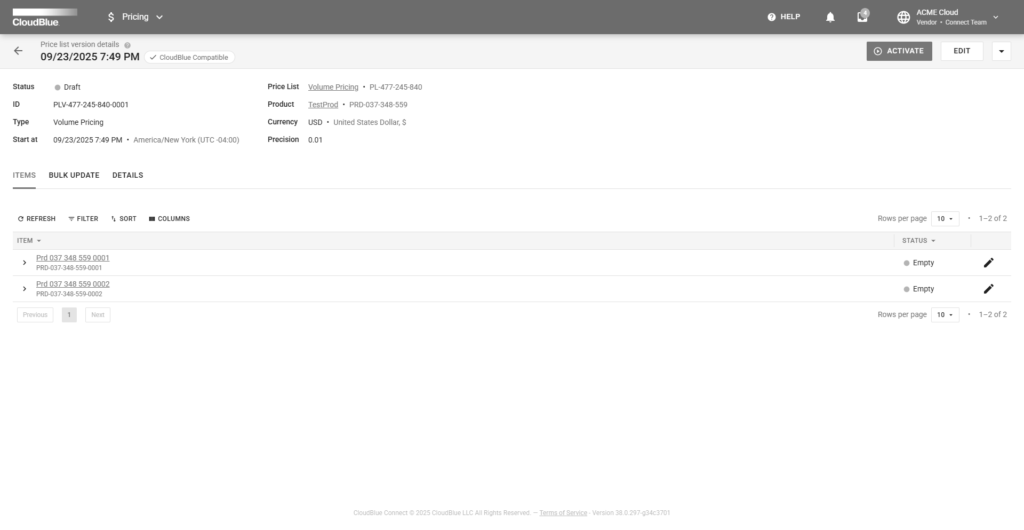
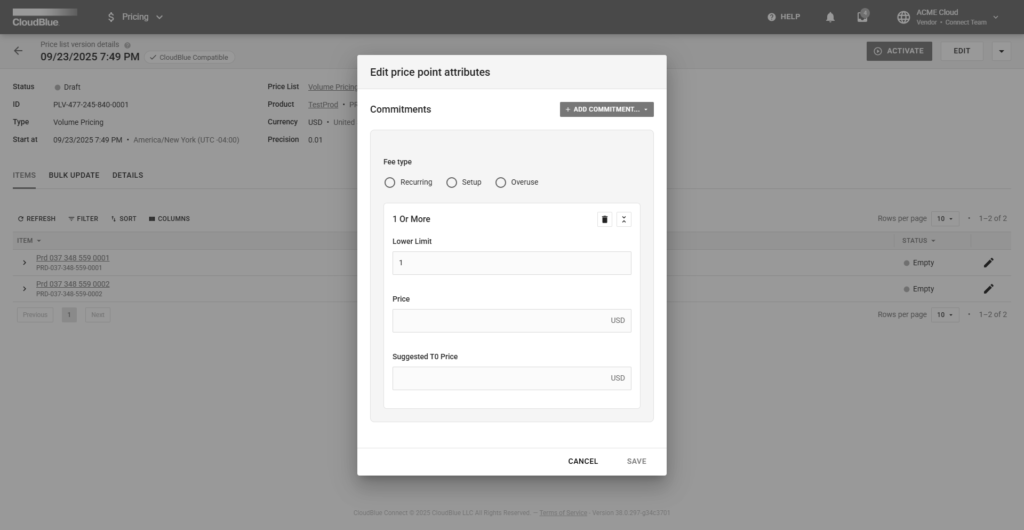
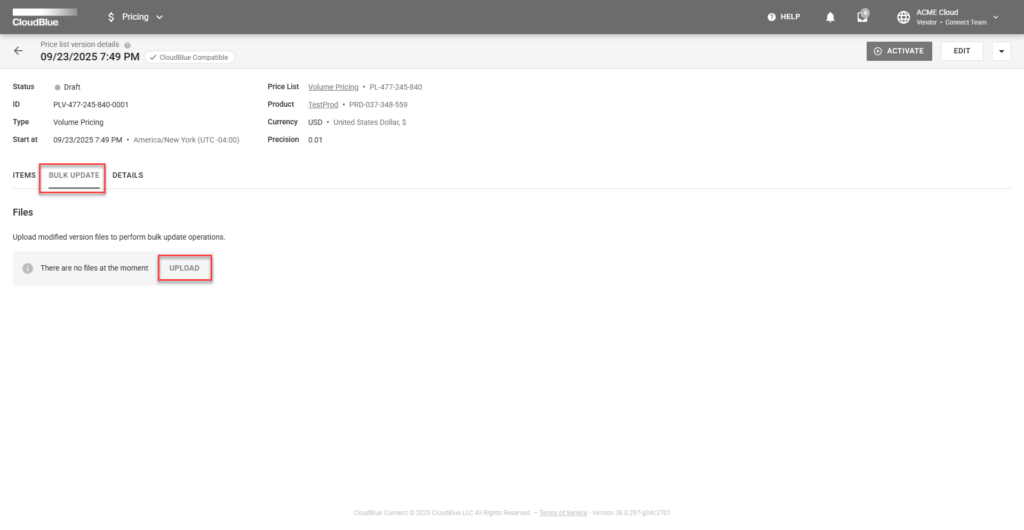
The individual items can be configured with the CloudBlue Commerce values of recurring, setup, and overuse per item and configured with appropriate commitment periods.
In the individual item volume buckets, each item can be assigned multiple volume buckets – with a lower limit for each bucket, as well as the correct price value.
Distributors can export and import item price values by clicking on the vertical ellipsis (⋮) and selecting the Download or Upload options. In addition, Vendors can update provided values by using the bulk update functionality via the corresponding tab.
Once all required values are specified, the system enables Distributors to activate price list version as described below.
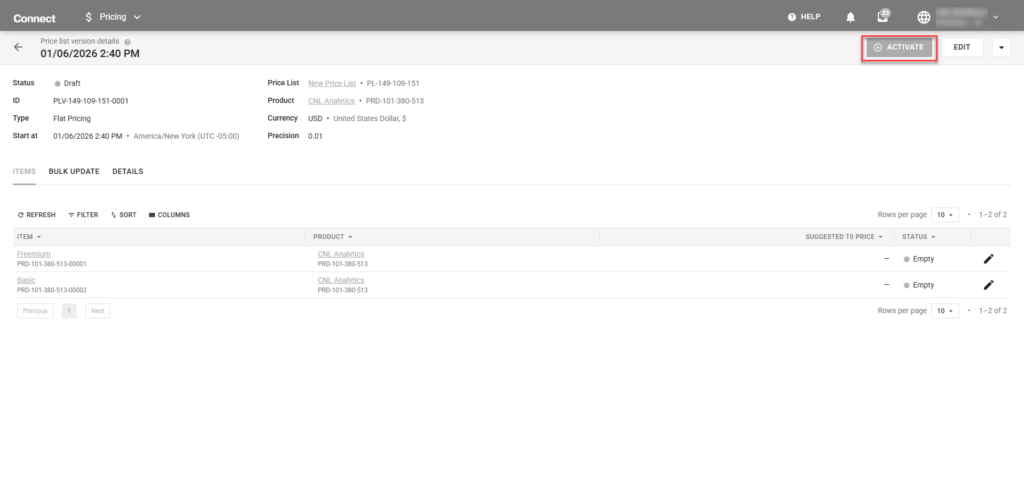
Click the Activate button at the top right corner of the price list version details screen to activate your price list version or schedule its activation.
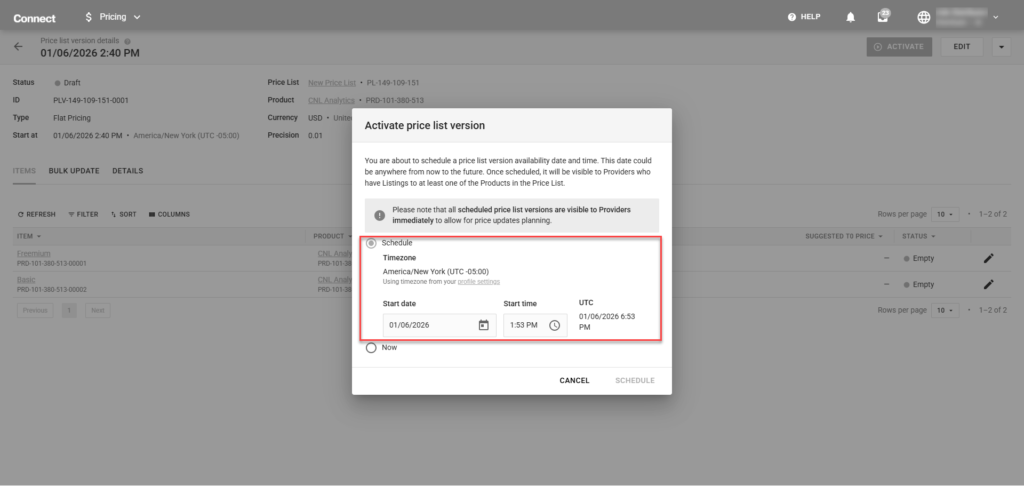
Select the Schedule option to specify price list activation time and date. Note that the system uses the timezone specified in your account.
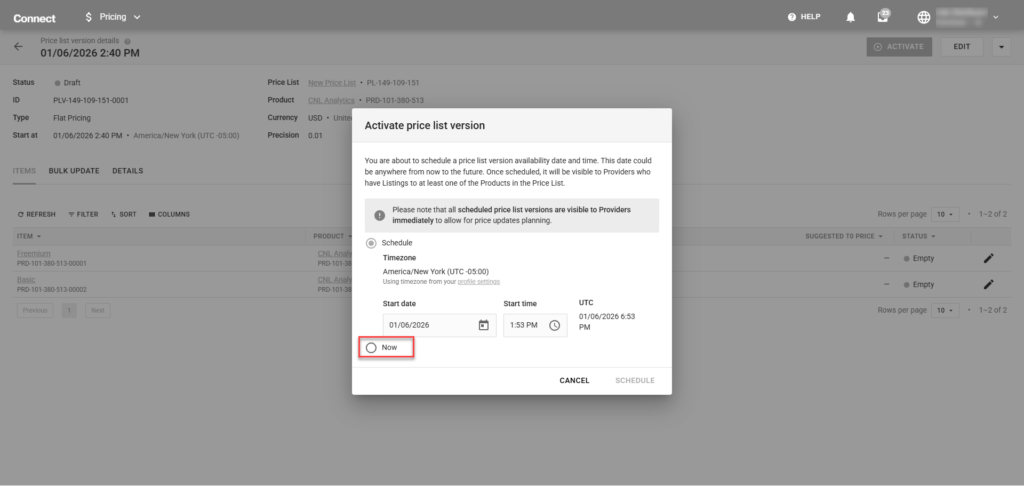
Alternatively, select the Now option activate their price list version instantly by selecting the Now button.
The system then assigns the Scheduled or Activated status to the price list version.