The Items section of the product profile page provides the Groups tab that is used to group related items into a singular group.
Both Vendors and Distributors are able to created Item Groups. Item Groups created by Vendors are also visible to Distributors that have listing of the product. However, Item Groups created by the Distributor are only visible to the Distributor.
Item Groups allows Partners on CloudBlue Connect® to group similar items within a singular group object. These items are usually transactionally related to each other – such as “add-on items”, “support items”, “free/trial items”, and other types of classifications. The grouping provides the partner and potential distributors to quickly identify any specific operational rules that may affect the “item group” as a whole.
Item Groups can be a mixture of items containing different commitment periods and billing periods to maintain maximum flexibility in item group bundling. Each item group is assigned a “Group MPN” and unique Item Group ID (prefix depending on vendor or distributor created) that allows systems to identify the item group configured.
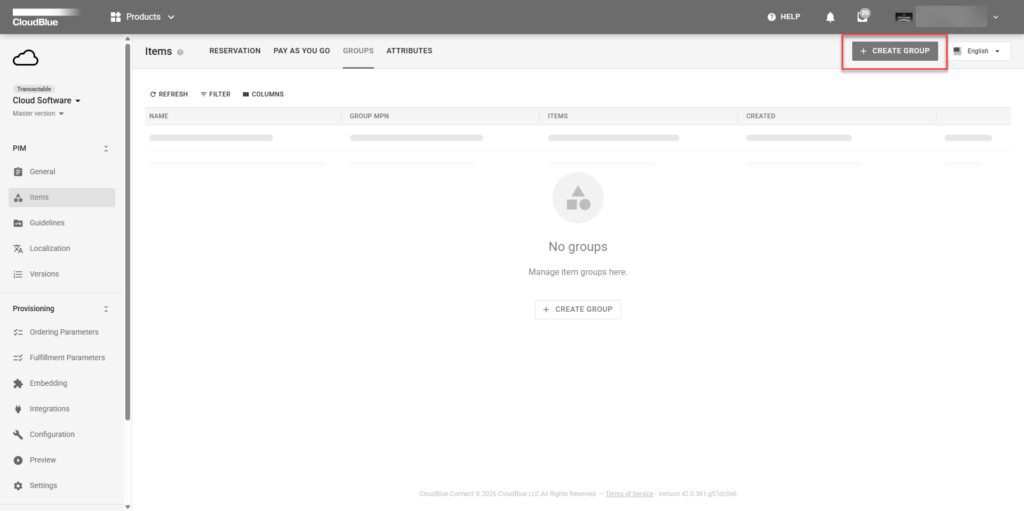
Within a specific product, navigate to the Items section on the left, then click the Create Group button to define a new item group.
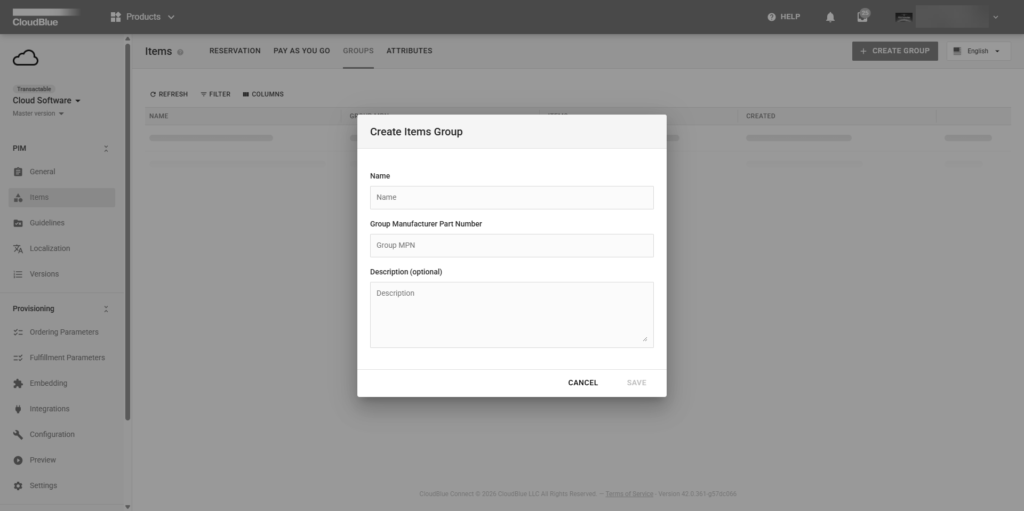
The following inputs will appear to start the Item Group creation process.
Specify the general properties:
Click Save to create the Item Group.
Once the Item Group has been created, go into the Items Group Details and click on the Items tab. From here, any item created within the product can be selected to be included in the Group Items.
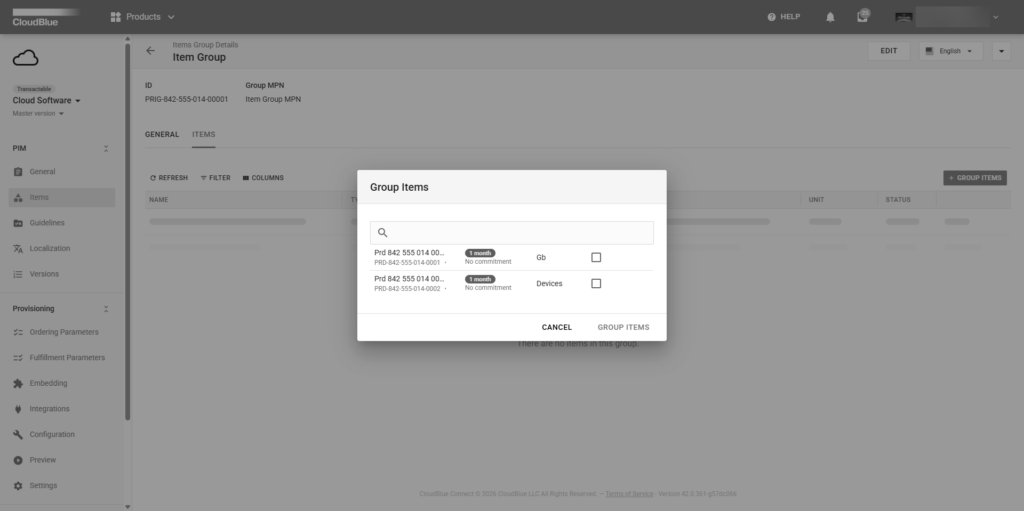
Once all the desired items have been selected, click Group Items to complete the item grouping.
As a result, the selected items are now available within the Item Group.
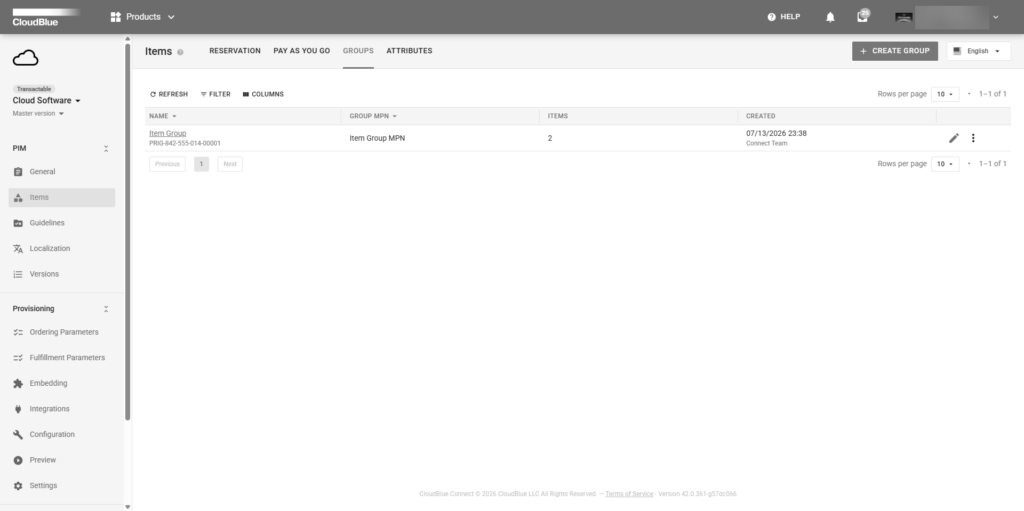
It is possible to review the provided item information by accessing the item group details screen. Click the edit icon to update item group name, group MPN, or description. The items can be updated by going into the item group details and making the changes accordingly.